Flexible Dodging and Burning in Photoshop

Facebooktwitterlinkedin

Today’s Question: Long ago, when I was first learning to use Photoshop, I found a way I could lighten or darken a particular area of an image and then “brush” that effect gradually into neighboring areas. Either my memory has failed me (quite possible), or the tools have changed, but I am unable to duplicate that process now. What am I missing, or messing up?

Tim’s Quick Answer: This is indeed a good technique that is still available in Photoshop. The process involves adding a new image layer with specific attributes, and then using the Brush tool to paint with black and white at a reduced opacity to darken and lighten areas of the image, respectively.

More Detail: The flexible dodging and burning technique is probably one of the adjustments I’ve been using (and teaching) in Photoshop the longest. It provides greater flexibility and control than using the Dodge and Burn tools by making use of the Brush tool instead.

To get started, select the top-most image layer (which could be the Background image layer) on the Layers panel by clicking on its thumbnail. Then hold the Alt key on Windows or the Option key on Macintosh while clicking on the “Create a new layer” button (the plus within a square icon) at the bottom of the Layers panel.

In the New Layer dialog, enter a meaningful name in the Name field, such as “Dodge and Burn”. Set the Mode popup to Overlay, set the Opacity to 100%, and turn on the “Fill with Overlay-neutral color (50% gray)” checkbox. Click the OK button to create the new layer.

Next, choose the Brush tool from the Tools panel. On the Options bar click the brush popup (the third icon from the left) and set the Hardness value to 0%. Make sure the Mode popup on the Options bar is set to Normal, and set the Opacity value to somewhere around 10% to 20%.

Set the colors to their default values of black for the foreground color and white for the background color by pressing the letter “D” on the keyboard. As needed you can press the letter “X” to exchange the foreground and background colors.

With everything configured, you can adjust the brush size as need by pressing the left square bracket (“[“) key to reduce the brush size and the right square bracket key (“]”) to increase the brush size. Then paint with black over areas of the image you want to darken, and paint with white over areas you want to brighten.

The result is a non-destructive layer-based approach to dodging and burning an image with great flexibility.

Migrating to a Larger Drive

Facebooktwitterlinkedin

Today’s Question: I keep all my images on a 6TB external hard drive, which is quickly running out of space, and would like to back it up to an external 20TB hard drive. What software do you recommend and why?

Tim’s Quick Answer: I would use software such as GoodSync (http://timgrey.me/greybackup), though there are some very important issues that need to be kept in mind when performing this work.

More Detail: There are a variety of ways you could migrate photos to a larger hard drive. However, I recommend using software that is designed for this type of purpose to avoid problems and frustrations.

If you’re using Lightroom Classic you’ll of course need to keep in mind that if the overall path to the photos changes, you’ll need to reconnect the “missing” folders after the migration. This is best done by reconnecting a single top-level folder, such as by having a “Photos” folder that can be used as the single folder to reconnect above all others.

I don’t recommend simply copying (or moving) the photos, because this can result in problems and frustration if there are any photos that aren’t able to be transferred for any reason. This process can be managed much more easily by creating a backup job for this purpose with software such as GoodSync (http://timgrey.me/greybackup).

One significant caveat to be aware of with GoodSync is that it will make the destination location look exactly like the source location, which can include deleting existing files if you’re not careful. For example, if you have existing files and folders on the destination drive, but then select the existing photos drive as the source and the top-level (root) of the larger hard drive as the destination, GoodSync will delete existing files on the larger hard drive so that it matches what is on the source drive. In this case you should use a new parent folder on the larger drive to serve as the destination for the backup.

While the overall process of migrating photos to a new and larger hard drive is rather straightforward, there are also risks involved if you’re not familiar with the specific process involved. In that case I would recommend having someone who is familiar with this workflow take care of the process for you. Even more important, if you’re using Lightroom Classic I consider it critically important to make sure that anyone who helps you with this type of computer work is very familiar with Lightroom Classic.

Identifying Missing Photos

Facebooktwitterlinkedin

Today’s Question: I’m wondering if it’s possible do a search to find all the images in a Lightroom Classic catalog where the original image is missing.

Tim’s Quick Answer: Yes, you can locate all photos that can’t currently be found where they’re expected by going to the Library module and choosing Library > Find All Missing Photos from the menu.

More Detail: A “missing” photo in Lightroom Classic is simply a photo that can’t currently be located in the specific location and with the specific filename that is expected based on the catalog. For example, if you disconnect an external hard drive that contains photos being managed by Lightroom Classic, all the photos on that hard drive would show as missing. However, all you would need to do is reconnect the hard drive to your computer and the photos would no longer be missing.

So, to get started with this task the first step would be to connect all hard drives so that as many photos are available as possible. You can then choose Library > Find All Missing Photos from the menu. This will cause a collection called “Missing Photographs” to be created (if it hadn’t been created previously) in the Catalog section of the left panel in the Library module.

You can then go through the images in the Missing Photographs collection and either reconnect photos you’re able to find or remove photos that you decide you won’t be able to locate. Note that it can also be helpful to reconnect folders rather than individual photos. For example, you could right-click on a missing photo and choose “Go to Folder in Library” from the popup menu. That will navigate you to the applicable folder in the Folders list on the left panel, where you can hopefully reconnect the entire folder rather than individual photos one at a time.

Free Registration: Photoshop Virtual Summit 6

Facebooktwitterlinkedin

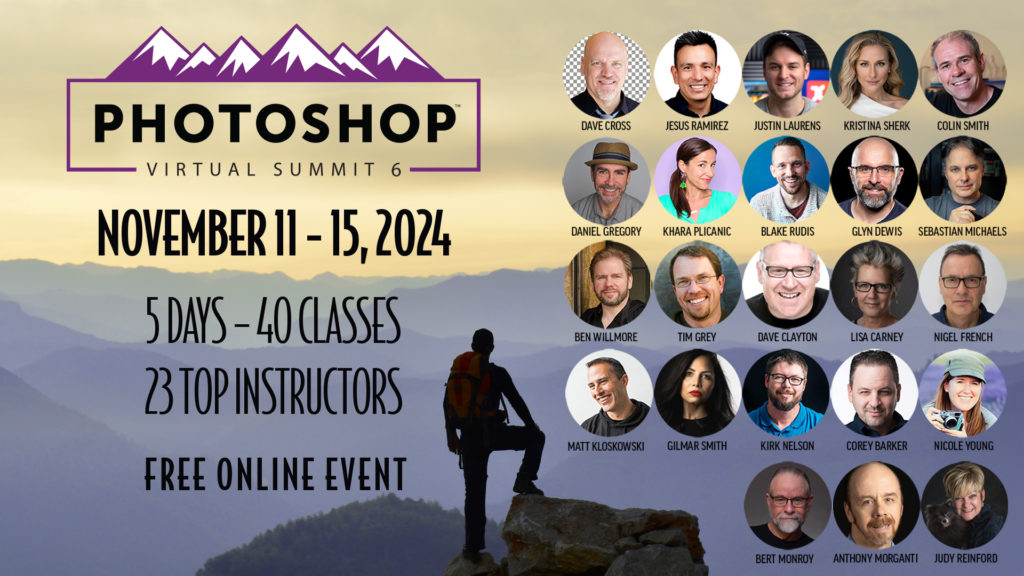
I am incredibly excited to announce that I will once again be teaching classes as part of another Photoshop Virtual Summit, and registration is now open for both the Free Pass and the VIP Pass!

My classes for Photoshop Virtual Summit 6 will be on “Crop, Straighten, and Transform!” and “Selecting by Tone and Color”. These are just two of the 40 classes presented over the course of five days in November.

You can register for a free pass now, and if you’re interested in a VIP Pass (with lifetime access to recordings of all classes, class notes from all instructors, and much more) you can get 37% off with the early bird discount for a limited time.

Get all the details (and mark your calendars to join me November 11th through the 15th) by following this link:

https://timgrey.krtra.com/t/MORGdrA2vDlF